
Download Display Eater – Lightweight Mac Screen Recorder, Free & Secure
Overview: What Makes Display Eater a Go‑to Tool for Simple Mac Screen Capture
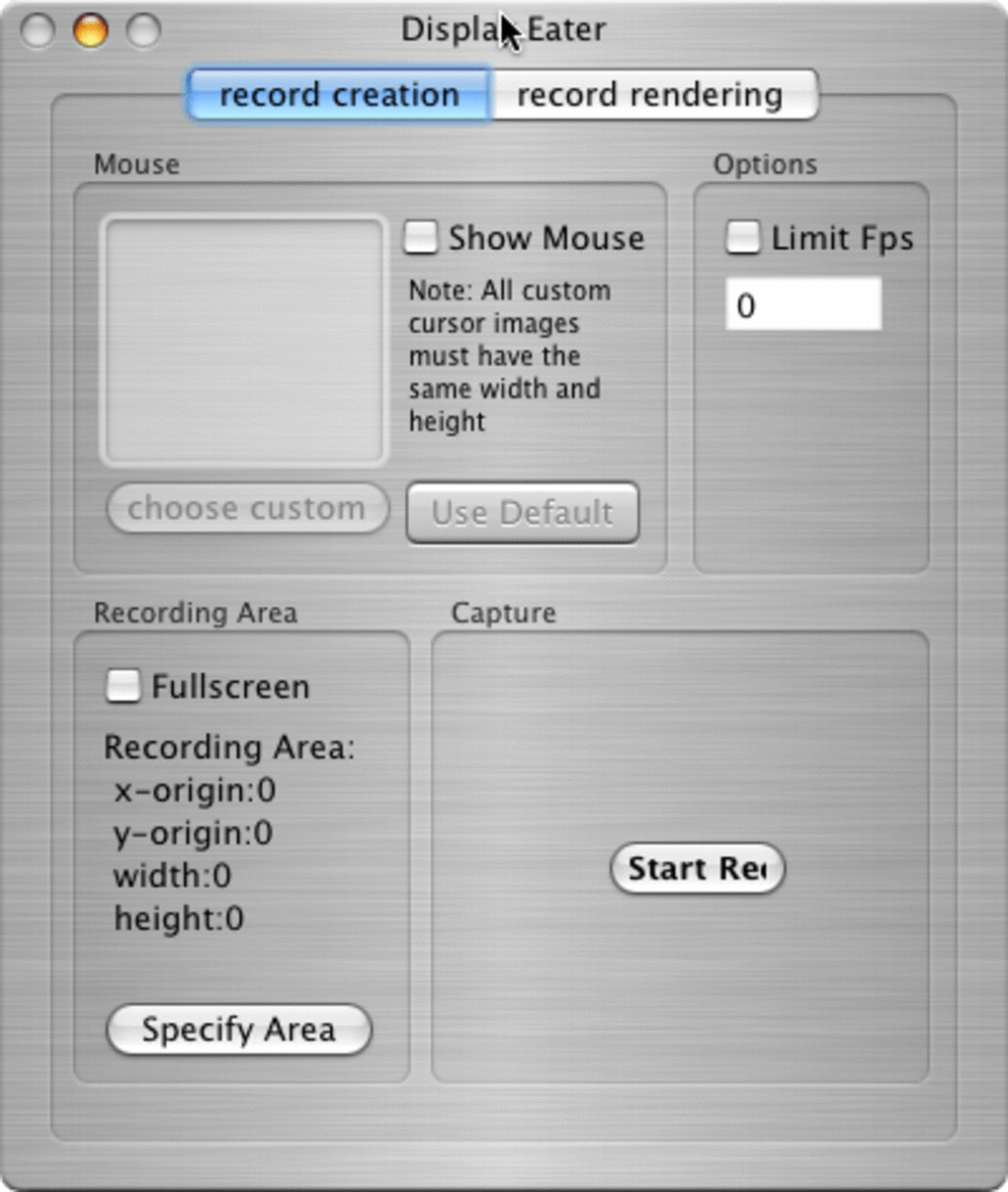
Display Eater is a lightweight screen recording tool built exclusively for macOS users who value speed, simplicity, and reliability. Unlike heavyweight editors that bundle complex timelines and effects, Display Eater focuses on the core task of capturing what happens on your screen, whether it’s a full‑screen demo, a custom‑area walkthrough, or a quick tutorial snippet. The interface is intentionally minimal: a single menu bar icon opens a concise control panel where you can select the recording region, toggle audio input, and choose the output format. Recordings are saved in the widely supported MOV container, making them instantly playable on most devices and easy to import into video‑editing suites if you decide to add polish later.
Because the application is designed to stay out of the way, it consumes only a fraction of your Mac’s CPU and RAM, even during high‑resolution captures. This low‑impact design means you can keep Display Eater running in the background without fearing performance slow‑downs while you work, code, or stream. The app also respects macOS security standards; it requests screen‑recording permission only once and stores recordings in a user‑defined folder, giving you full control over your data. Whether you’re a teacher creating lesson snippets, a developer showcasing a new feature, or a marketer preparing a product demo, Display Eater provides a straightforward, secure solution that eliminates the learning curve often associated with professional capture software.
Key Features that Keep Recording Simple and Effective
- Full‑Screen & Custom Area Selection: Capture the entire display with one click or drag to define a precise rectangle for focused recordings.
- Standard MOV Output: Saves videos in the MOV format, ensuring compatibility with QuickTime, iMovie, and most editing tools.
- Audio Capture Options: Record system audio, microphone input, or both, giving you flexibility for voice‑overs or live commentary.
- Minimal System Footprint: Uses less than 5 % CPU on a typical 1080p capture, preserving performance for other tasks.
- One‑Click Start/Stop: Shortcut keys let you begin or end a recording without leaving your current workspace.
- Auto‑Save to Preferred Folder: Choose a destination folder once and let the app handle file naming and organization.
- Secure macOS Permissions: Requests screen‑recording access only during first launch, complying with Apple’s privacy guidelines.
- Free to Use: No hidden fees or subscription models; Display Eater is completely free for personal and commercial use.
Each of these features is purpose‑built to keep the user experience frictionless. There are no hidden timelines, color‑grading panels, or export presets to configure. The moment you launch Display Eater, the essential controls appear, allowing you to jump straight into recording. Because the software avoids unnecessary bloat, updates are small, quick to download, and rarely disrupt your workflow. The focus on essential functionality makes Display Eater especially appealing for educators, freelancers, and small‑business owners who need a reliable capture solution without the overhead of a full‑featured video suite.
Installation & Usage: Getting Started in Minutes
Installing Display Eater is as straightforward as the app itself. Follow these steps to have the recorder up and running on your Mac:
- Download the Installer: Click the Download Display Eater button on the official website. The file is a signed .dmg package, ensuring a secure source.
- Mount the Disk Image: Double‑click the downloaded .dmg file. macOS will open a new window showing the app icon.
- Drag to Applications: Drag the Display Eater icon into your
/Applicationsfolder. This copies the app to the standard location for macOS applications. - Launch and Grant Permissions: Open Display Eater from Launchpad or the Applications folder. macOS will prompt you to allow screen‑recording access; click Open System Preferences and enable the toggle for Display Eater.
- Configure Basic Settings: In the preferences pane, set your default save folder, choose whether to record audio, and assign shortcut keys for start/stop.
Once installed, using the app is intuitive:
- Click the menu bar icon to open the recording panel.
- Select Full Screen or drag to define a custom region.
- Toggle the microphone icon if you need voice commentary.
- Press the Record button or use your assigned shortcut to begin.
- When finished, click Stop. The video is automatically saved to your chosen folder in MOV format.
Because Display Eater runs as a lightweight background service, you can start a capture, switch to any other application, and continue working without interruption. The app also remembers your last used settings, so you rarely need to re‑configure preferences between sessions. Should you encounter any issues, the built‑in Help menu links directly to an online knowledge base and a contact form for support.
Compatibility: macOS 10.13 (High Sierra) and later, including Ventura and Sonoma.
FAQ, Pros & Cons, and Final Thoughts – Is Display Eater Right for You?
Pros
- Extremely lightweight – negligible impact on system performance.
- Simple, uncluttered interface ideal for beginners.
- Free with no hidden costs or subscription fees.
- Supports both full‑screen and custom area captures.
- Secure macOS permissions and automatic saving to user‑defined folders.
Cons
- No built‑in video editing tools; you’ll need a separate editor for post‑production.
- Limited to MOV output – may require conversion for some workflows.
- Advanced features such as cursor highlighting or annotation are absent.
Frequently Asked Questions
Can Display Eater record system audio on macOS?
Yes. In the preferences panel you can enable system audio capture alongside microphone input, allowing you to record both internal sound and voice‑overs simultaneously.
Is there a limit to how long a recording can be?
Display Eater does not impose a hard time limit. Recording length is only constrained by available disk space on your Mac.
Does the app work on Apple Silicon (M1/M2) Macs?
Absolutely. The binary is universal, running natively on both Intel and Apple Silicon processors, delivering the same low‑resource performance.
Can I set a hotkey to start/stop recordings?
Yes. The shortcut configuration is available in the settings menu, where you can assign any unused key combination for instant start/stop.
Is my recorded video stored securely?
Recordings are saved directly to a folder you choose during setup, with no cloud upload by default. This keeps your files on your local drive, under your control.
Conclusion: Should You Download Display Eater?
If you need a no‑frills, reliable screen recorder that won’t hog resources or demand a steep learning curve, Display Eater is an excellent choice. Its focus on core functionality—full‑screen or custom area capture, basic audio options, and secure file handling—makes it ideal for educators, developers, and small‑business owners who produce short tutorials, product demos, or quick walkthroughs. While power users may miss advanced editing or annotation features, the app’s free price tag and lightweight design more than compensate for the trade‑off. Install Display Eater today, start capturing crisp Mac screen videos in seconds, and enjoy a smooth, distraction‑free workflow.







